Create pricing rules
About pricing rules
Pricing rules allow you to associate pricing options with delivery methods and providers. When a customer selects a delivery option on your website, Delivery Gateway parses all pricing rules and assigns the first rule that matches the delivery option.
Rule options
When creating a pricing rule, the following are mandatory:
- Name
- Currency
- Price
- Delivery method (at least one of home delivery, pickup point or store)
Everything else is optional, including the delivery provider. If a provider ID is not set, the rule will be available for each provider, depending on the delivery method.
For example, your customer wants home delivery with a provider called Acme Delivery. Delivery Gateway looks for a pricing rule that matches both conditions: home delivery and Acme Delivery as a provider. The first matching rule is selected. A matching rule must have:
- Home delivery enabled.
- Either Acme Delivery selected as a provider, or no provider selected at all.
Multiple matching rules
If multiple pricing rules match the selection criteria based on the customer's choice, Delivery Gateway selects the first matching rule. To make sure the list of rules is parsed in the order you want, you can set priority. The Priority field takes an integer: the lower the number, the higher the priority.
For example, let's say every home delivery provider costs the same, except Acme Delivery. You create:
- A rule called Home deliveries: this applies to all providers who offer home delivery service.
- A rule called Acme home delivery: this rule only applies to Acme Delivery.
If a customer wants home delivery with Acme Delivery, both rules will match. To make sure Acme home delivery is matched first, you must give it a higher priority (which means setting a lower priority number). If Acme home delivery is priority 1 while Home deliveries is priority 2, Acme home delivery will be matched first.
Create pricing rules
To create a pricing rule:
- Log in to the Delivery Gateway admin dashboard.
- In the left menu bar, find Management, and select Pricings.
-
Click New pricing.
-
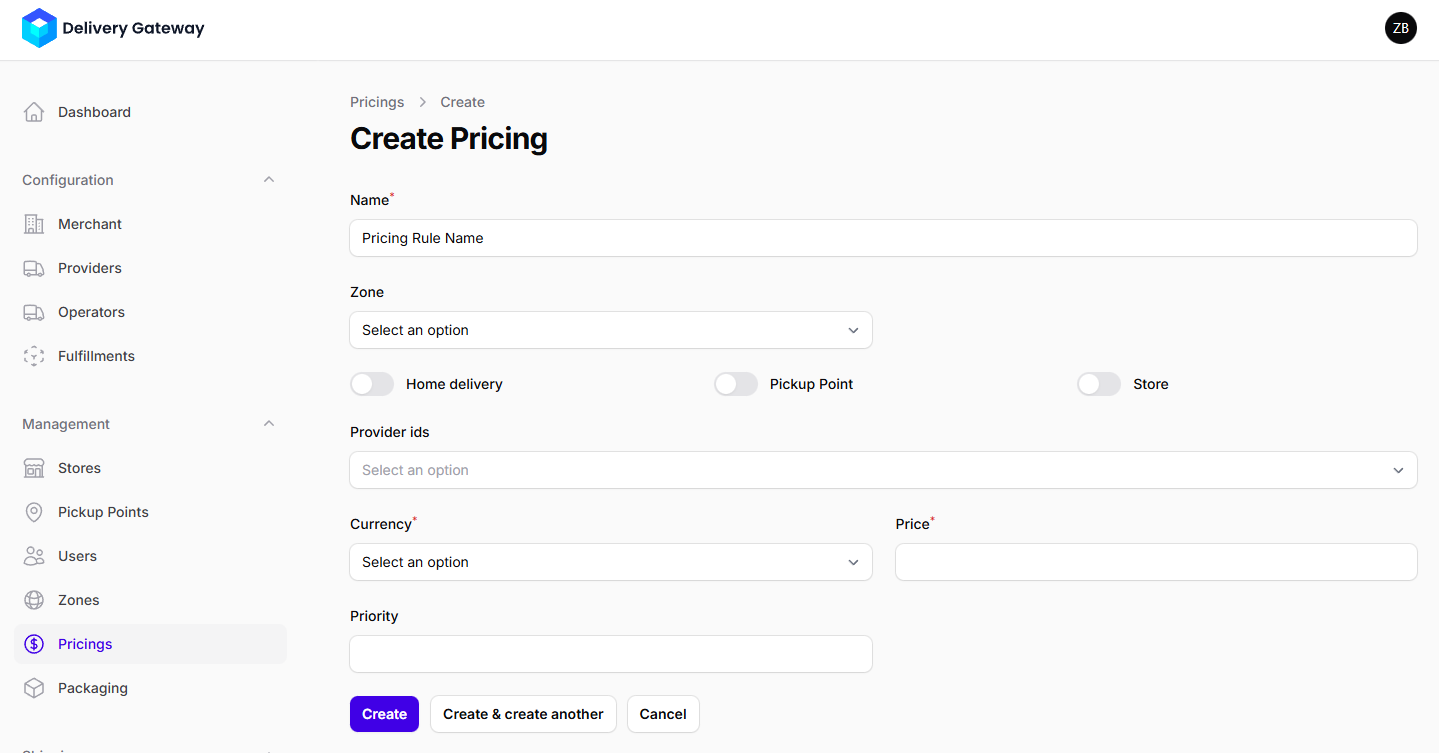
In the Name field, add a human-readable name that helps identify the pricing configuration.
-
Optionally, select a zone from the Zone dropdown menu: the pricing configuration will only be valid for the selected zone.
noteFor more information about zones, see Create zones.
-
Enable at least one delivery option.
The pricing configuration will be available for the selected delivery options.
-
Optionally, select a provider from Provider ids.
If you don't select a provider, the pricing rule will be available for each provider, depending on the delivery method.
-
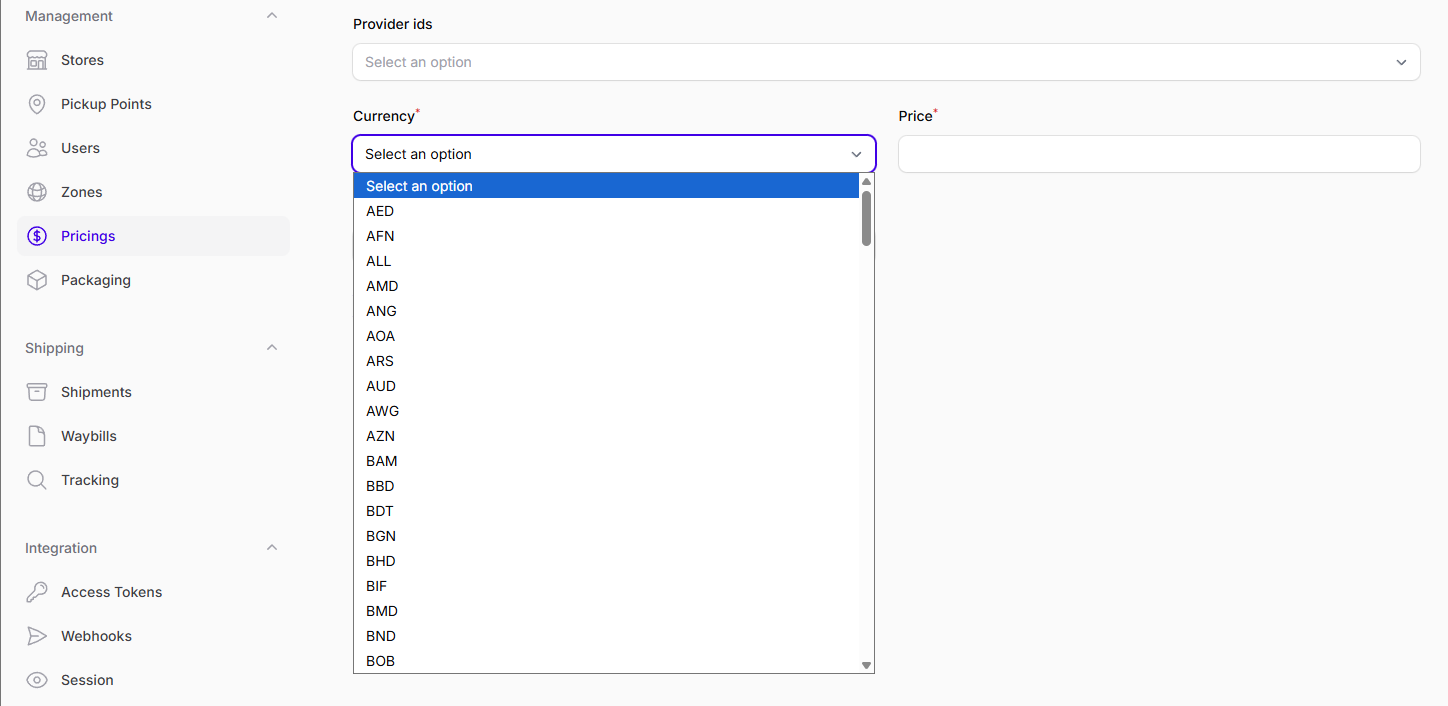
Set a currency and a price.
-
Set a priority: the lower the number, the higher the priority.
Rules with higher priority will be parsed before rules with higher priority. In case of multiple matching rules, the rule with the higher priority will be matched first.
-
Click Create.