Create stores
About stores
If you want to provide your own location(s) where customers can pick up their orders, you can create one or more stores. It doesn't have to be an actual store: any location that you manage and where you can provide delivery pickup services may serve as a store.
A store requires the following information:
- Reference ID: This is used to refer to your store by the Delivery Gateway frontend integration and our backend API.
- Name: A human-readable name identifying your store on the admin dashboard and in the delivery widgets.
- Address and location.
- Opening hours.
You can create multiple stores.
Unlike home delivery and pickup point delivery, store delivery doesn't need to be specifically enabled. You just need to create a store and create a pricing rule for store pickup.
Create a store
- Log in to the Delivery Gateway admin dashboard.
- In the left menu bar, find Management, and select Zones.
-
Click New store.
-
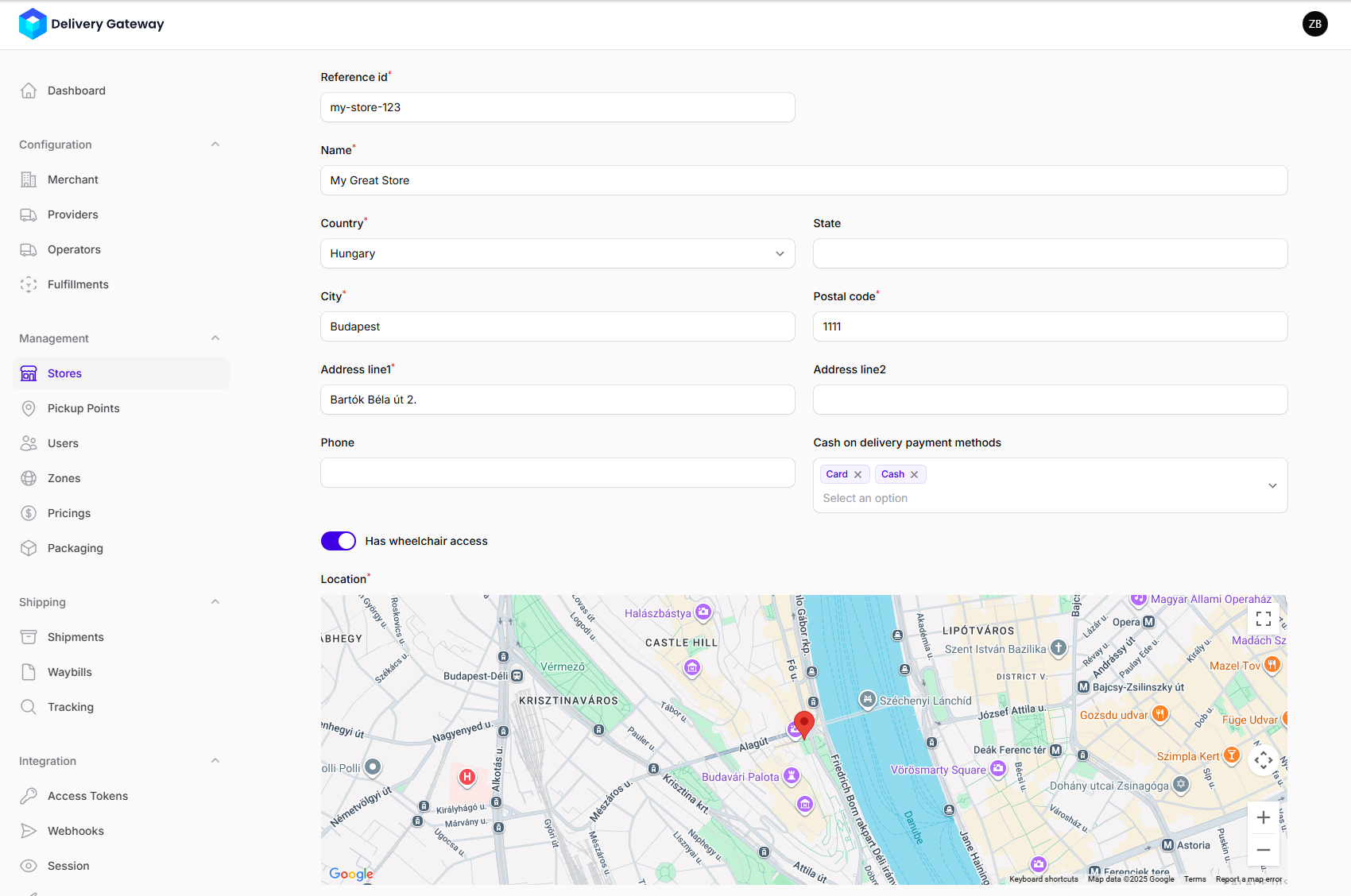
Set a Reference id.
The ID must be unique.
-
Set a human-readable name.
-
Set your address. You need:
- A country.
- Optionally, a state or province within the country.
- A city and a postal code.
- A street name and number.
-
Optionally, add a phone number.
importantThis will be the contact number for your store: it will be visible for customers.
-
If your store is wheelchair accessible, toggle the option on.
-
Optionally, select the available payment methods from the Payment methods dropdown menu.
You can add both cash and card. If you set neither, no payment information will be displayed when a customer selects store pickup.
-
Set your exact location on the map.
-
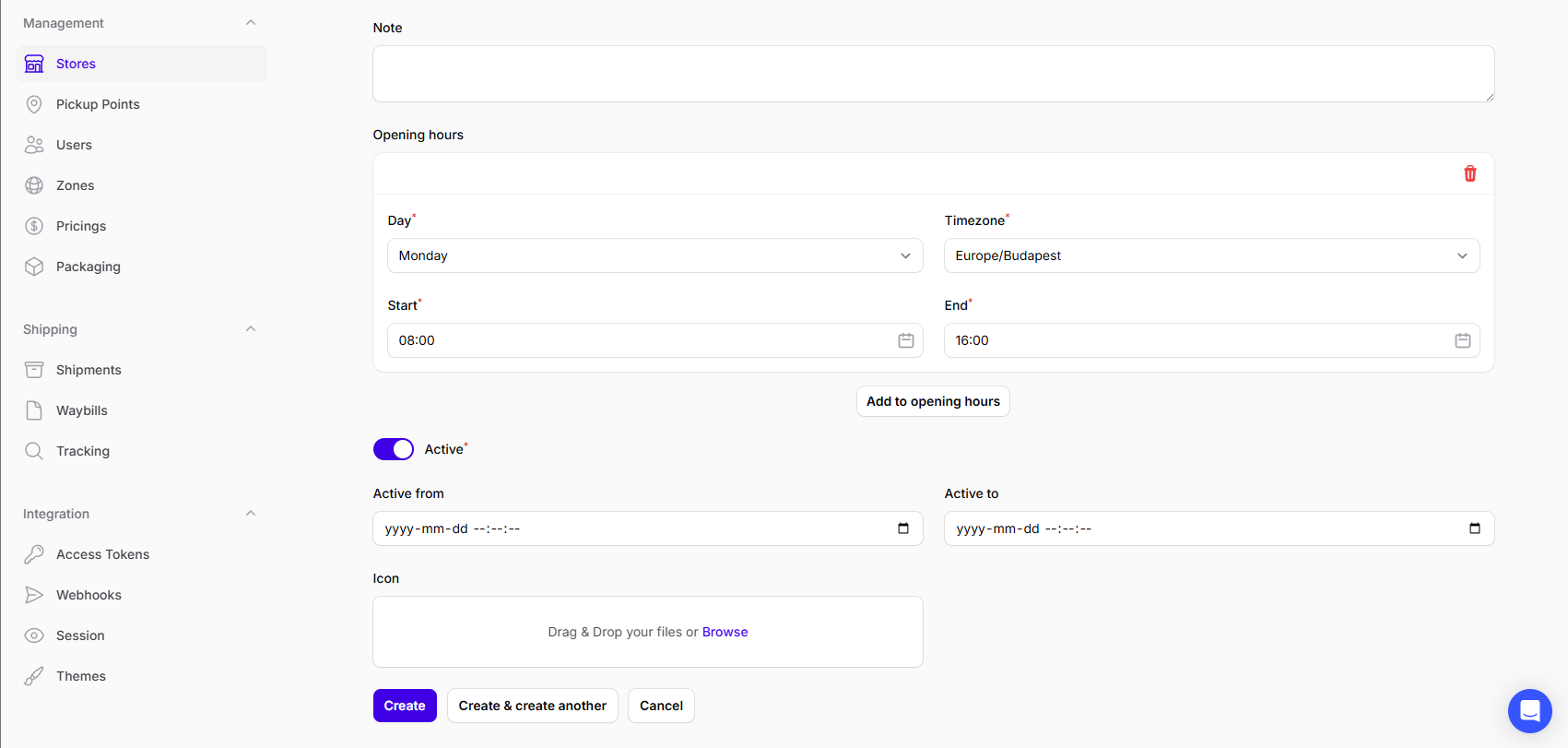
Under Opening hours, set your opening hours for each day. When you're done with a day, click Add to opening hours to add another day.
importantMake sure you set the timezone correctly!
-
Toggle Active on to make your store available for pickups.
You can optionally set a date range during which the store is available for pickups. If you don't set a date range, your store will be shown as available until you manually disable it.